
How to Add Captions to Instagram Videos
If you’re looking to start creating Instagram videos and Reels, adding captions is an essential skill to acquire.
Luckily, learning how to add captions to Instagram video is simple!
In the guide, I’ll show you the easiest way to add captions to Instagram reels and videos both in the Instagram app, and with AI tools.
Let’s get straight into it. 📽️
How to Add Captions to Instagram Videos
Instagram have made adding captions to your content, Reels, and stories incredibly simple. Here’s how. 👇
-
Create A Reel
-
Open the Captions Tab
-
Edit Your Captions
-
Position Your Captions ---
1. Create a Reel
-
Open Instagram and click the + icon at the bottom of the screen
-
Allow Instagram to access photos and videos
-
Upload your media and tap Reel, then tap the video you want to use and click next
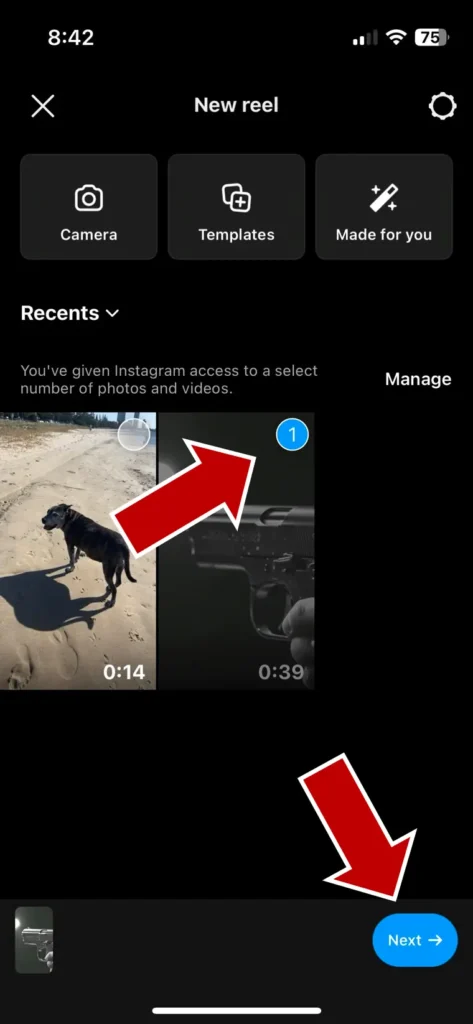
- Your video will begin playing, in the bottom left, tap Edit video
2. Open the Captions Tab
-
Once you’re in the edit menu, in the bottom toolbar, slide across and tap Captions
-
The Instagram app will automatically begin transcribing your audio
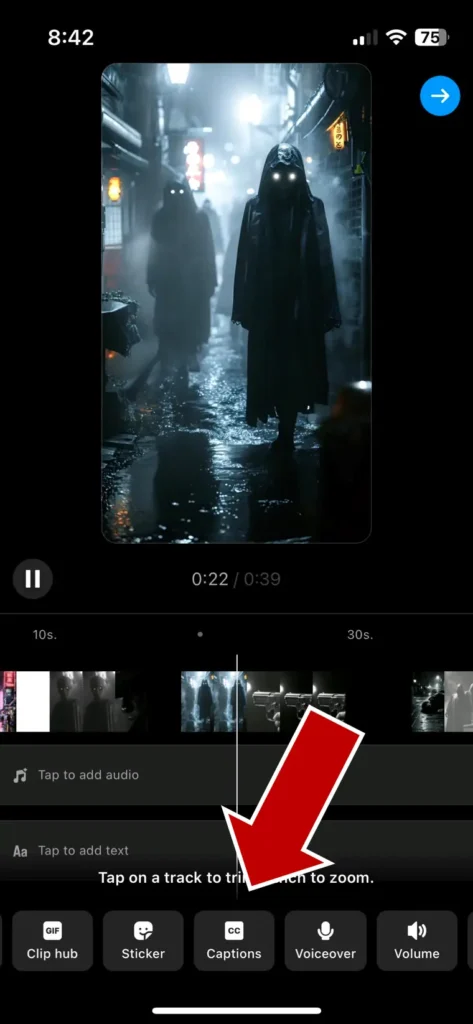
3. Edit Your Captions
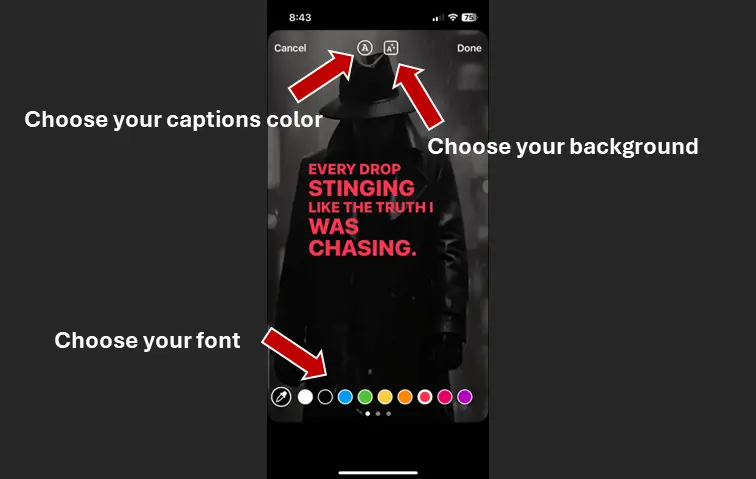
Once your captions have transcribed, you can edit the color, position, and style:
-
Click the color wheel in the top left to adjust the color of your captions
-
Slide the Aa icons to choose your caption’s font and style
-
Click the A⭐ icon in the top right to give your captions and outline or a background
When your happy with your Instagram video captions, click done.
4. Position Your Captions
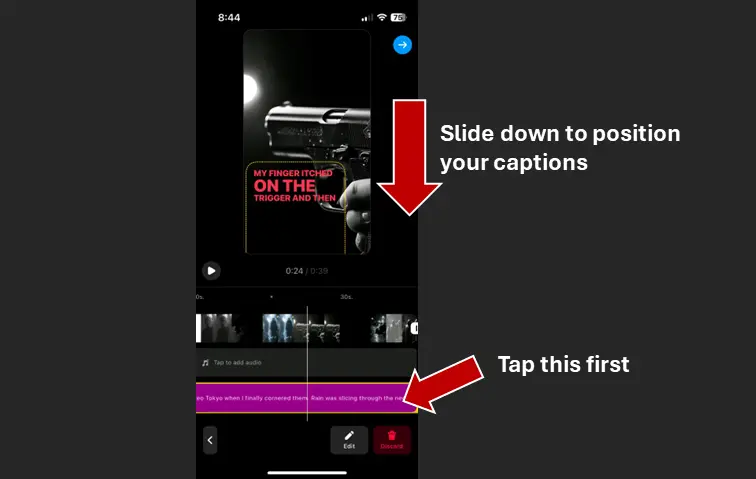
- In the edit interface, click the captions track then slide down on the video preview
-
You can now position the captions on your screen
-
When you’re happy with the positioning, click Edit video to go back to the editing interface
-
Now just click the blue arrow in the top right corner to upload your Instagram video with captions! ---
Alternative Tools for Adding Captions to Instagram Videos
Adding captions to your content using the Instagram app is free and straightforward, but it’s lacks a lot of functionality needed by most users.
The good news is there’s a range of AI caption generators that are just as easy to use, if not better!
1. Submagic

Submagic offers highly accurate AI-generated captions with features like auto-emoji and keyword highlights, perfect for enhancing engagement and visual appeal on Instagram videos and Reels.
I took a deep dive into Submagic’s features if you want to learn more about arguably the most popular AI caption generator on the market.
2. VEED

VEED provides a user-friendly web app with precise transcription and extensive customization options for captions, making it ideal for creators who need detailed video editing tools beyond what the Instagram app offers.
Learn more about VEED in this Veed.io review.
3. Captions AI
Captions integrates advanced AI tools for mobile and desktop, offering capabilities such as voice cloning and speech correction, which are beneficial for creators looking to add high-quality, engaging captions to their Instagram content. ---
What Are the Best Fonts to Use for Instagram Captions?
When choosing fonts for Instagram captions, it’s essential to consider readability, aesthetic appeal, and brand consistency. Here are some of the best fonts to use for various styles and purposes:
- Montserrat: A versatile and timeless font that combines the best of serif and sans-serif styles, perfect for professional and formal posts.

- Burbank: Popularized by the game Fortnite, Burbank is a playful and bold font that is great for creating eye-catching and fun Instagram captions, especially for younger audiences or brands with a vibrant personality.

- Bebas Neue: Known for its bold, all-caps style, this font is excellent for creating attention-grabbing headlines and designs.

- League Spartan: A geometric sans-serif font that offers a modern and sleek look, suitable for tech or contemporary-themed content.

- Oswald: With its clean and modern lines, Oswald is ideal for professional or tech-related posts, providing a sleek and contemporary appearance.

-
Open Sans: A clean and highly legible sans-serif font, perfect for large volumes of text and ensuring readability on smaller screens.
-
Playfair Display: A serif font that exudes elegance and sophistication, ideal for posts that require a touch of class, such as fashion or luxury brands.
-
Nunito: A screen-friendly font that is easily readable, making your posts more engaging and accessible for mobile users.
-
Dubbo: A retro serif font that adds a nostalgic flair, perfect for brands wanting to evoke a sense of history and timelessness.
These fonts can help elevate your Instagram captions, making them more engaging and visually appealing to your audience.
Why Use Video Captions on Instagram?
If you’ve used Instagram you would have noticed the the vast majority of Reels and video content feature video captions.
And there’s good reasons for this!
Here’s 9 reasons you should start captioning Instagram videos today:
-
Increase Engagement: Captions on Instagram help grab the viewer’s attention, encouraging them to engage more with your content, whether it’s Instagram videos, Instagram stories, or Instagram Reels.
-
Accessibility: Adding captions makes your content accessible to a broader audience, including those who are deaf or hard of hearing.
-
Better Understanding: Instagram captions provide context and clarity, helping viewers understand the message behind your content without needing sound.
-
Boost SEO: Captions can improve your content’s searchability on the Instagram app, helping you reach a larger audience.
-
Reach Non-Native Speakers: For audiences who might not speak the language of your audio, captions offer a written reference that can be translated, enhancing comprehension.
-
Quiet Environments: Many users browse Instagram in places where they cannot play audio. Captions ensure your message is conveyed even with the sound off.
-
Consistency Across Formats: Using Instagram captions consistently across various formats like Instagram videos, stories, and Reels creates a unified and professional appearance.
-
Enhanced Storytelling: Captions allow for better storytelling, providing additional information, humor, or context that enhances the viewer’s experience.
-
Engage Scrollers: Captions can catch the attention of users scrolling through their feed, increasing the chances they’ll stop and watch your content.
Wrapping Up
Today I outlined how to add Instagram video captions to Instagram Reels using both the app, and purpose built AI caption tools.
While Instagram’s captioning feature is free and easy to use, it lacks functionality for some users.
Tools like Submagic and VEED are great options for those needed that extra editing power over their auto generated captions.
Happy editing! ✌️