If you’re reading this, chances are you’ve come across one of those AI-generated music videos on social media. 🎵
So if you’re looking to try your hand at creating an AI-generated music video of your own then you’re in the right place!
In this step-by-step guide, I’ll walk you through exactly how to make an AI music video using Neural Frames and Artificial Intelligence. 😎
How Do You Make an AI Music Video?
To make an AI music video, sign up to Neural Frames, generate the first frame for your music video, upload your audio track and modulate, add music video elements, and render your final video!
Making an AI music video is simple! But there are a few steps involved so keep this guide handy! Here’s what you’ll need to get started making stunning music videos:
- 30 minutes of spare time ⌚
- A desktop computer (recommended) 💻
- A Neural Frames subscription (don’t worry, there’s a free trial too) ✅
Heads up: Neural Frames has had a facelift since I took these screenshots, so things look a bit different now, but the steps below match the current Frame-by-Frame editor.
Let’s go! 👇
1. Sign Up
Head over to Neural Frames and make an account. 🖋
I recommend choosing a plan now, as the free trial credits only stretch to about 20 seconds of frame-by-frame video!
Plans start with Neural Knight at $39 a month ($26 billed yearly), and every paid plan includes stem extraction, which most users will want for their music videos. I'll explain this more later. ⏳
2. Generate Your First Frame
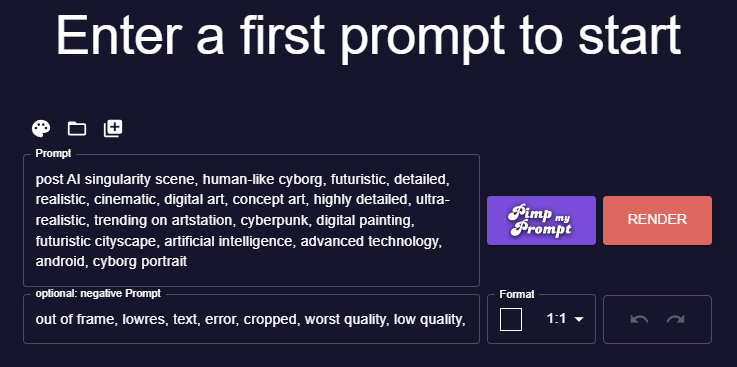
Start a new Frame-by-Frame project and pick a model. If you don't have an existing image, you can generate a new one from a text prompt.
This image will be used for the first frame of the music video. Here's a quick rundown of the options:
- Prompt: Describe what you want your music video scene to look like 📃
- Pimp My Prompt: Once you've entered your prompt click the pimp my prompt button - this enhances your wording and gives a better image ✨
- Negative Prompt: Optional feature negative prompts allow you to remove features from your music video-generated image ❌
- Format: Don't forget this one! It sets the aspect ratio of your video. If you're making a regular YouTube Video I recommend 16:9, for YouTube shorts, Instagram Reels, or TikTok you should go with 9:16 📱
Awesome - now generate your image.
Play around with the prompt until you're happy with the image.
3. Upload Your Song
Once you're happy with the first frame, you'll land in the music video editor. The first thing you want to do is upload your song by double-clicking the Music timeline and accepting the copyright disclaimer.
If you don't already have an audio track, something that's popular at the moment is using an AI-generated cover song. 🎤
Neural Frames automatically separates each individual instrument of the music file - these are known as stems. You'll get eight of them: kick, snare, hi-hats, toms, drums, bass, vocals and everything else. 🎸
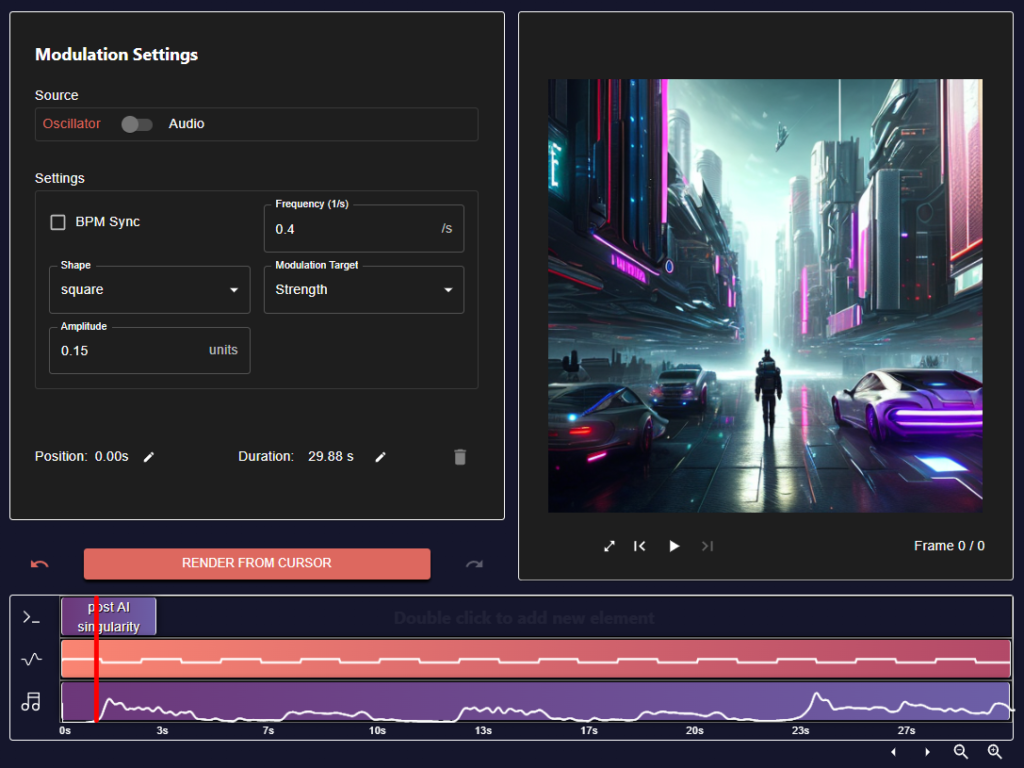
Next, you'll want to add a modulation. Double-click the modulation timeline and choose Audio. A modulation allows you to choose one of the stems to control the changes in the music video. For example, if you want the image to change with the snare drum, you can make this happen with modulation. 🥁
You can point a stem at the strength of the AI changes, or at the zoom, panning and rotation of the camera.
Stem extraction comes with every paid plan (Neural Knight and up). Without stems, choose Oscillator instead, which pulses at a set frequency or in sync with your song's BPM.
4. Add New Elements
Once you've added a song for your music video and set the modulation, we're ready for the fun part - making the imagery for the music video!
Double-click the Prompt timeline to add a new prompt clip, then drag it to move it or stretch it to change how long it runs. Each clip gets its own prompt, model and camera settings, and the grey transition between two clips blends one into the next.
For newbies, I recommend starting with the motion presets at the top of the prompt box until you get used to it, then playing around with the sliders for strength, smoothing, echo, panning and rotation. 😎
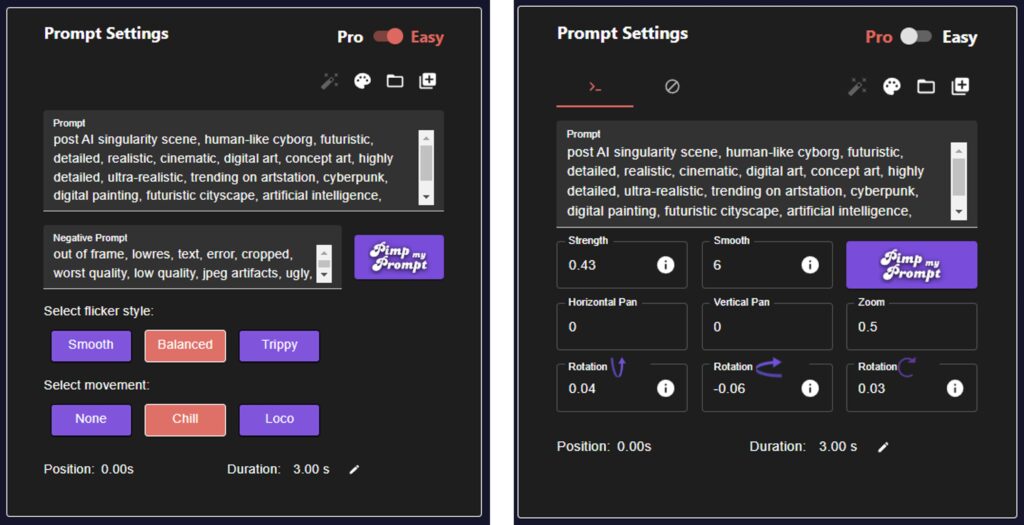
That screenshot shows the older Easy and Pro settings; the current editor gives you presets and sliders instead.
Feeling lazy? After you upload your song, hit Auto-Prompt and Neural Frames writes prompts and modulations for the whole track based on its sound, energy and lyrics.
If you want to dig into the advanced settings, Neural Frames' guide to what all the settings do explains exactly how each one works. ✅
5. Render Your Music Video
Here's the magical part. 😍
Once you've completed all the steps above, click Create!
Neural Frames renders from wherever your cursor sits on the timeline, so set the cursor where you want the fresh renders to start or you'll overwrite your existing frames! ⚠
You can stop the render at any time, tweak a section and create it again.
If your video is a minute or two long, consider grabbing a coffee as the rendering of so many images can take a while. ☕ Turbo Mode (the lightning bolt) is on by default and speeds renders up by as much as 4x.
When you're happy with it, hit Export to upscale and download your video: 1080p on every plan, or 4K on Neural Ninja and up.
Congratulations - you just made your first AI-generated music video!
How Do You Make an AI Music Video With Neural Frames Autopilot?
Use Autopilot when you want a finished music video fast and don't need frame-by-frame control: upload your song, set up the track, approve the storyboard and generate the video. It works in four stages:
- Music: Click Upload Music and pick your song.
- Track: Trim the section you want, fix the auto-transcribed lyrics, choose 16:9 or 9:16, add up to three characters, describe your video concept and pick a visual style. Then choose a video technique: Classic Video, Lyric Showcase or Vocal Video.
- Storyboard: Check the AI's scenes, tweak or regenerate any you don't like, and pick a video model (Kling or Seedance). Generating the starting images (keyframes) first lets you check the look before you spend credits on the full video.
- Video: Review the clips, fix anything with the chat tool, then download in 1080p (or upscale to 4K on Neural Ninja and up).
Autopilot uses text-to-video models, so it burns through more credits than frame-by-frame animation, but Neural Frames shows you the cost before you generate. You can also send an Autopilot video to the editor if you want to add transitions or make other changes.
What is Neural Frames?

Neural Frames is a tool designed specifically for creating AI-generated music videos and animated video clips. It allows you to generate visuals that sync and react to audio, using frame-by-frame models built on Stable Diffusion plus text-to-video models like Kling and Seedance.
At its core, Neural Frames is an AI music video maker that utilizes text prompts and AI to create stunning music videos. You can upload an audio track and Neural Frames will automatically extract the stems such as the kick drum and snare drum.
These stems allow the AI to modulate parameters like "strength" on the beat of the music, making the visuals pulse and react to the sound.
The key advantage of Neural Frames is that it makes it easy for anyone to quickly create AI-powered music videos. You can iterate by re-rendering sections and fine-tuning your prompts, models, and modulation parameters until you achieve the perfect sync between sound and visuals.
It's an innovative tool aimed at empowering musicians, creators, and artists to produce captivating music videos and animated clips using the power of artificial intelligence in their music video production.
What Is the Best AI Music Video Generator?
I've tried the most popular ones and found Neural Frames to be the best AI music video generator available right now.
There are a few tools available to create AI music videos but none impressed me as much as Neural Frames. It's a purpose-built AI music video generator with a super intuitive layout that enables anyone to have a go!
The high-quality output, affordability, and user-friendliness makes Neural Frames my go-to AI tool for AI-generated music videos.
Wrapping Up
Today we learned how to make AI-generated music videos with Neural Frames.
It's a relatively simple process which depends on how detailed you want your music video to be.
By using AI-generated music videos you'll not only save a bunch of time, but you'll likely see better engagement from your audience too!
Give Neural Frames a go and let me know how it goes!
Catch-ya 👋