When creating images in Midjourney, getting to know secret prompt hacks like raw mode can make all the difference.
In this guide, I’ll outline exactly what is raw mode in Midjourney. I’ll also showcase some unique examples so you can get an intuitive understanding.
Let’s get started by answering the question: What is Raw Mode in Midjourney?
What is Raw Mode in Midjourney?
Raw mode (--raw) switches off Midjourney’s automatic styling. Normally Midjourney adds its own creative touch to every image, and raw turns that “auto-pilot” off. With simple prompts you’ll get more literal, often more photo-like results, and when you prompt specific styles you get a lot more control over the final look.
It works on Midjourney V5.1 and later, including V8.2, the current default (Midjourney’s raw docs).
Quick heads up on syntax: older guides (including the first version of this one) write it as --style raw. That’s the V5.1 to V6.1 spelling. Midjourney’s docs use --raw for V7 and V8.
How Do You Use Raw Mode in Midjourney?
There are two ways you can turn on raw mode: using syntax, or using model selection.
Use Raw Mode Syntax
This method works on both Discord and the Midjourney website. It’s also my preferred approach. The Midjourney syntax for raw mode is:
--raw
Simply add the syntax to the end of your prompt to generate images in raw mode.
Note: Using syntax will only apply raw mode to that specific prompt. If you want to work in raw mode without having to add the syntax every time, see the next section. 👇
Use Model Selection
This method involves activating raw mode from the menu. This is how you want to activate raw mode if you want to produce images in raw mode continuously.
On the website, click the settings button in the Imagine bar and switch Raw on in the Model section.
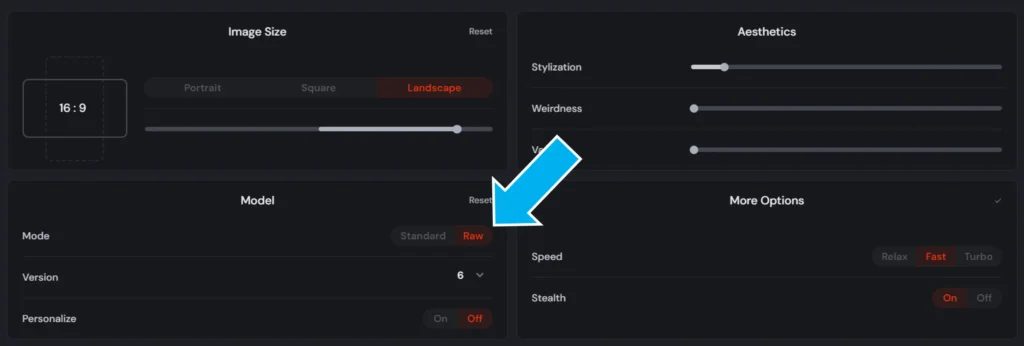
The settings panel looks a bit different these days, but Raw still lives in the Model section.
For Discord users, type /settings in the Midjourney bot chat and simply click RAW Mode, as seen below. It adds --raw to all your prompts.
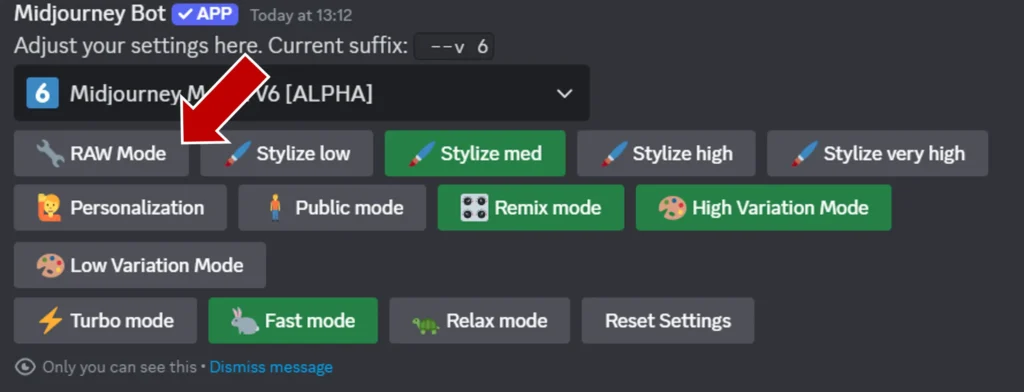
Your website and Discord settings are synced, so switching raw on in one turns it on in the other.
Raw Mode for Video and Edits
Raw isn’t just for still images. Add --raw to a video prompt for more precise motion control, or use it with the V8 Edit model when you want your instructions followed more closely.
Now you know what raw mode does and how to use it, let’s move onto some examples.
5 Midjourney Raw Mode Comparisons
Study the following comparisons and see if you can develop an intuitive feeling for how raw mode impacts the images. I made these on V6 back in 2024.
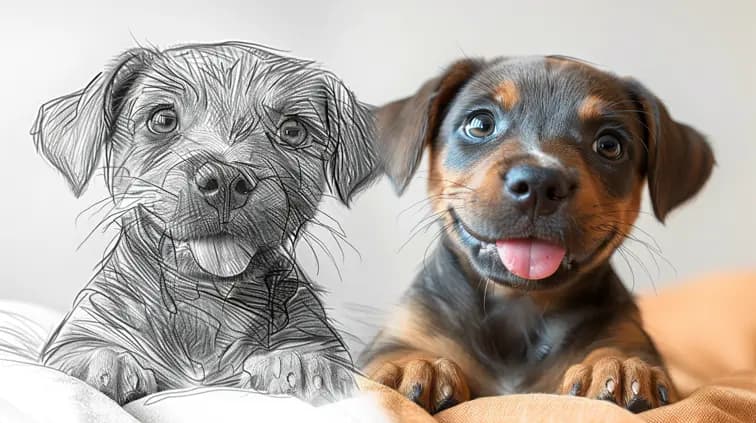
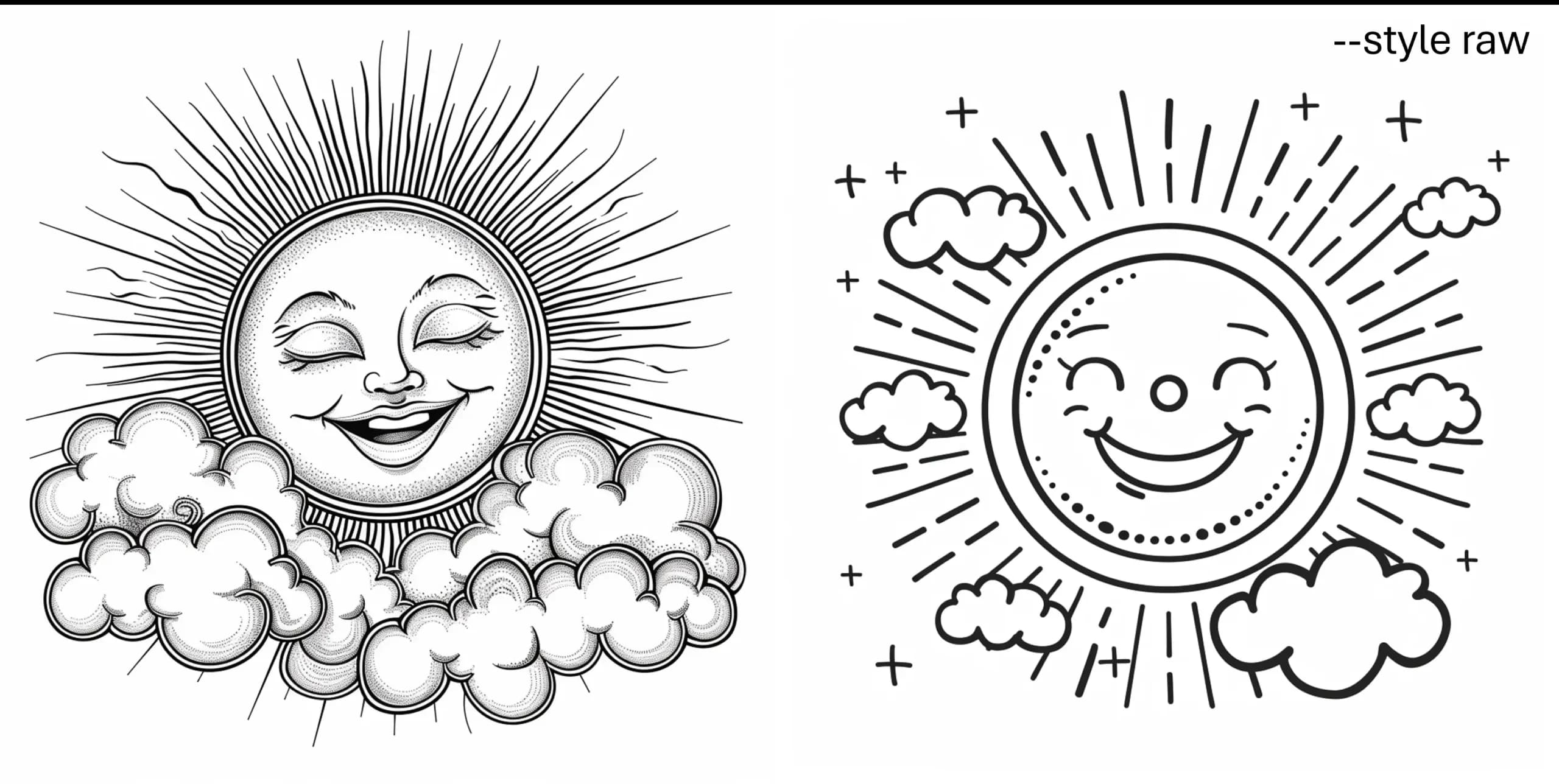
Standard Midjourney generations are on the left, raw images are on the right. 👉
1. Emojis
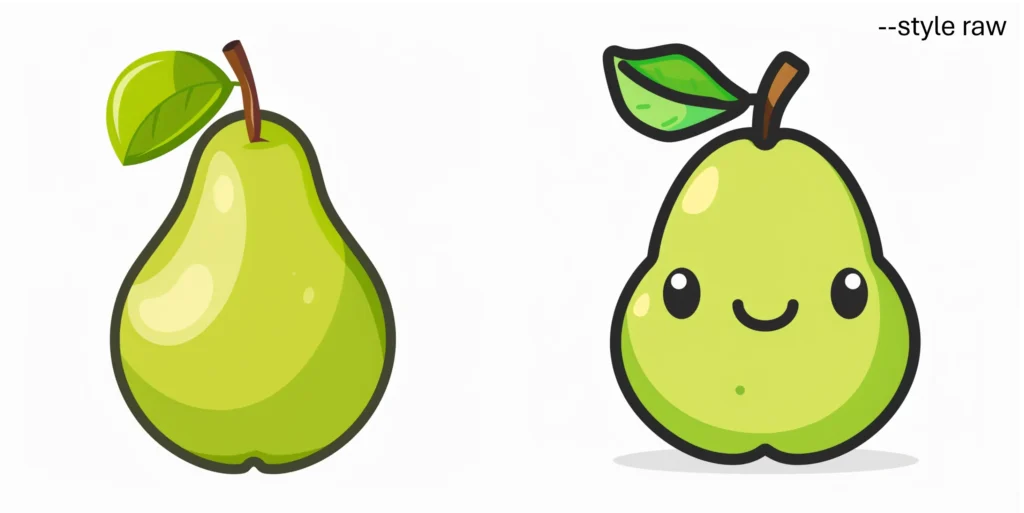
A green pear emoji icon.
Comparing these two generated images, notice how the raw version followed the prompt by generating a small emoji style face on the pear?
2. Coloring-in Pages
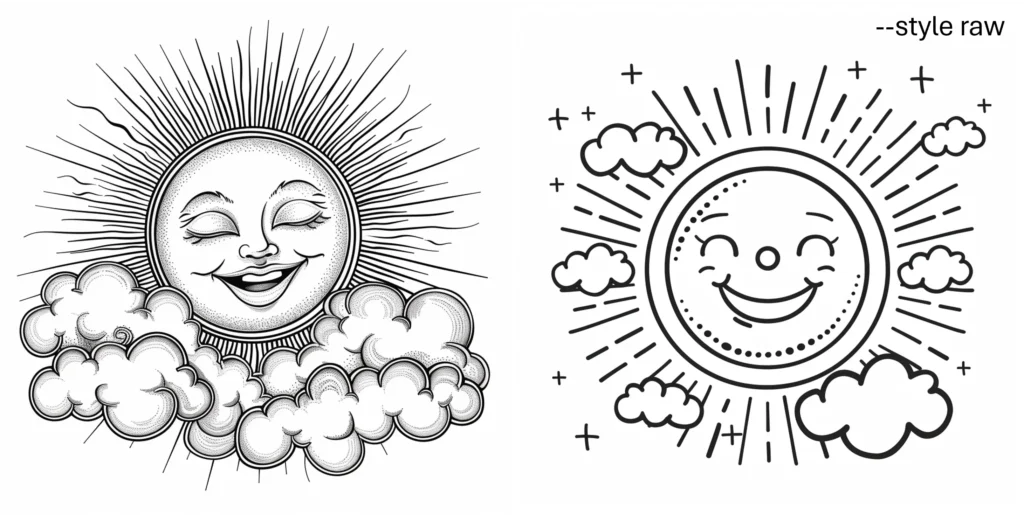
Clean line art of a smiling sun and fluffy clouds.
In this simple line art image for a coloring in book, you can notice how the “Midjourney Aesthetic” has been applied to the left image. The raw mode image on the right uses the same prompt yet gives a more accurate match.
3. Icons
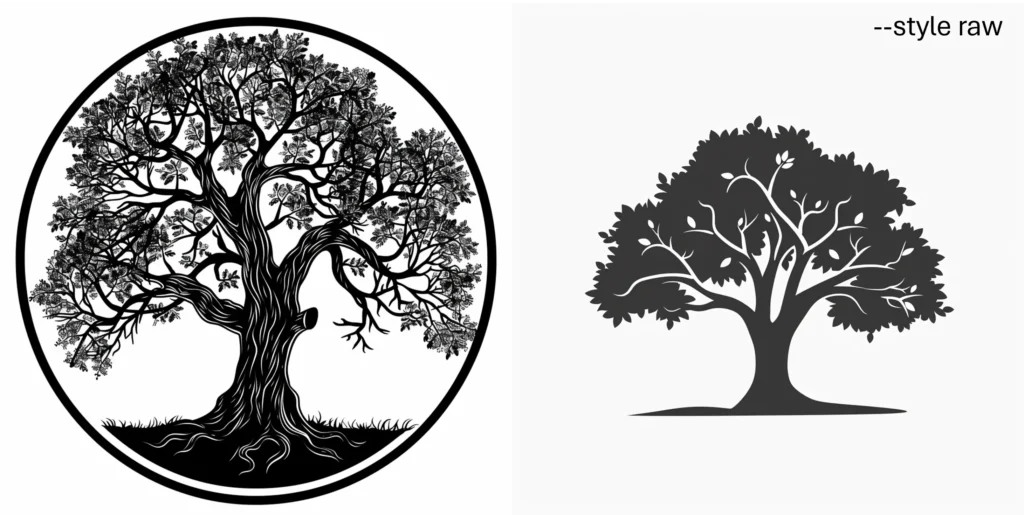
Black and white oak tree icon.
Similar to the coloring in example above, this should really drive the point home. Turning raw mode on is super useful when looking to design simple logos and icons.
4. Sketch
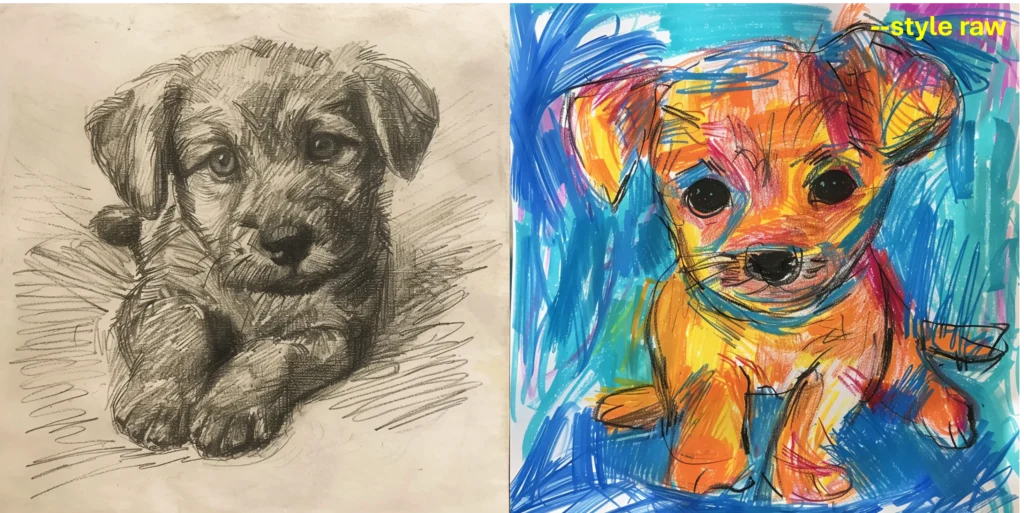
Child’s sketch of a puppy
This is a great example of how raw mode improves prompt adherence. The image on the left is definitely a sketch, but not likely done by a child. The raw image on the right however looks exactly like something a child might draw.
5. Portraits
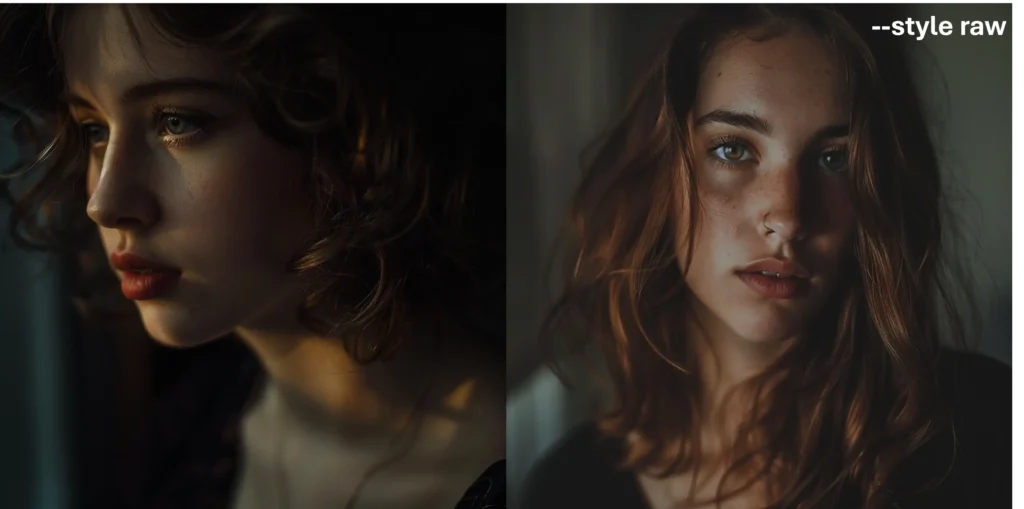
Portrait, natural lighting, moody.
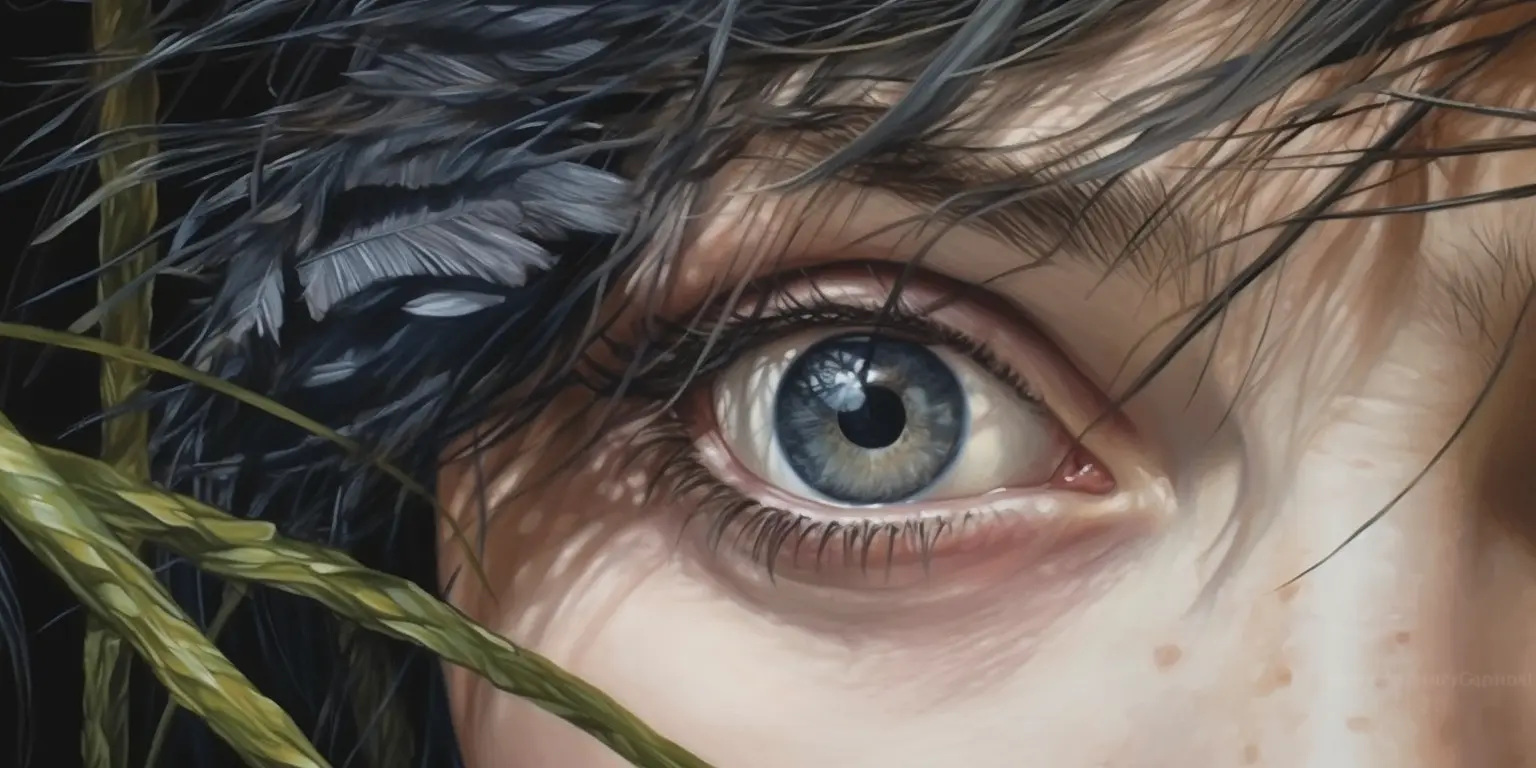
Take these two portraits. Notice how raw (for lack of a better word) the image on the right is? The left image has the signature Midjourney automatic beautification applied, and almost looks cinematic.
Improve Raw Mode Workflow with Permutations
Using permutations is a great way to quickly iterate and compare raw mode images.
The following permutation runs through varying stylize values, cycling raw on and off.
--s {100, 200, 600, 1000} {--c 0, --raw}
Add this to the end of your prompt to iterate super fast! It makes 8 prompts, so you’ll need a Standard plan or higher (Basic caps permutations at 4), and it only runs in Fast or Turbo mode.
Final Thoughts
Getting to know all the parameters in Midjourney is handy and raw mode is definitely on the list.
When I first wrote this on V6, I felt like raw was needed less and less with each new Midjourney version. If you were using earlier versions of Midjourney (like 4 and 5) raw was very handy, but on V6 just using a baseline stylize value seemed pretty much comparable.
V8 has swung things back the other way. Midjourney’s own V8 notes recommend switching to --raw for photos or a plainer, more controlled look, and V8.2 is bolder and edgier by default. So if you wrote raw off a while ago, it’s well worth another crack.
Talk soon,
-Matt