To use Suno, sign up for free at suno.com, type a description of the song you want into the Create box, and press Create. Suno writes the lyrics, picks the sound, and gives you two versions to choose from. For more control, switch to Custom mode and write your own lyrics and style.
Here’s every step of your first song on v6, the model family Suno runs now, plus how Suno actually works, how to fix a song that’s nearly right, and how to download it.
How to use Suno, step by step
To use Suno, you sign up, open Create, describe your song or write it out in Custom mode, press Create, pick the better of the two versions, then fix, download, and share it.
From idea to finished song
Step 1: Sign up for free
Go to suno.com and choose Sign Up, or get the Suno app for iPhone or Android. You sign in with Google, Apple, Discord, Facebook, Microsoft, or a phone number. You need to be at least 13.
Every account gets 50 free credits a day, enough for 10 songs. That’s plenty to learn on. You only need a paid plan to download songs or use them commercially, and my Suno pricing guide breaks down what each plan costs.
Step 2: Open Create and pick Simple or Custom
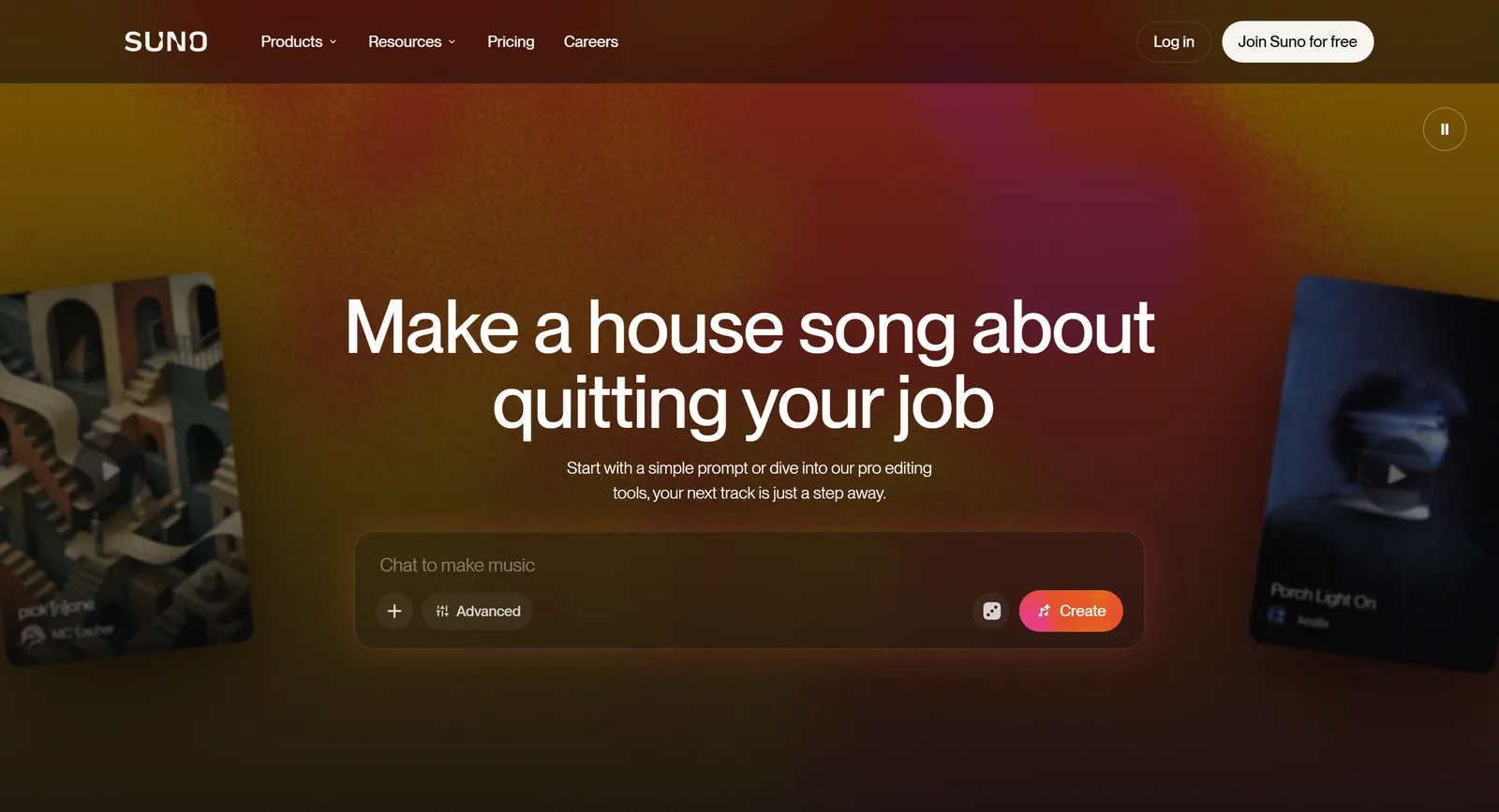
Click Create in the menu on the left. At the top of the Create form you’ll see two modes: Simple turns one description into a whole song, and Custom gives you separate boxes for your lyrics, the style, and a title. Start with Simple for your first song. You can also type straight into the “Chat to make music” box on Suno’s homepage.
Step 3: Describe your song in Simple mode
Type what you want to hear: the genre, the mood, what the song’s about, and who sings it. Then press Create. For example:
An upbeat indie pop song about a road trip with old friends, sung by a warm female vocalist, with jangly guitars and handclaps
“A song about summer” works too, but the more you describe, the closer Suno gets, and Suno’s prompt enhancement can turn a rough idea into a fuller description for you. Turn on Instrumental if you don’t want vocals. On v6 you can also add references to your description, like your own Suno songs, a playlist, an audio file, an image, or a video.
Step 4: Or write your own lyrics and style in Custom mode
Switch to Custom when you’ve written lyrics, or you want to control the sound. Fill in three boxes:
- Lyrics (up to 5,000 characters). Paste your own words with a tag like [Verse] or [Chorus] above each section, or let Suno write them.
- Styles (up to 1,000 characters). Describe the sound: genre, tempo, instruments, vocals, and production. My Suno prompts have 127 ready to paste, and the Suno prompt generator builds one from your picks.
- Title (up to 100 characters).
In Advanced Options, Exclude styles keeps out anything you don’t want, like drums or autotune, and Vocal Gender locks in a male or female singer. The Weirdness and Style Influence sliders set how adventurous Suno gets and how closely it follows your style. Set the Variety slider to 0 if you want Suno to stick to your exact style words.
On a paid plan, pick v6 or v6-wild from the model menu at the top of the form: v6 is the most precise, and v6-wild the most unpredictable. Free accounts use v6-mini.
Step 5: Press Create and pick the better song
Press Create. Each Create costs 10 credits and makes two different songs from the same prompt, each up to 8 minutes long. Play both and keep the one you like.
If neither lands, change a few words and run it again. One prompt often takes three or four goes before a version clicks, so don’t judge Suno on its first try. For long songs and covers, turn on Max Mode: it costs more credits, and Suno says it keeps the vocals and style steadier from start to finish.
Step 6: Fix what’s nearly right
A song that’s almost there doesn’t need starting over. Open the three-dot menu next to it and pick the tool that fits. On v6 you can also ask for a change in plain words, like “change the chorus so it’s sung by a gospel choir”.
| Tool | Use it when | What it does |
|---|---|---|
| Extend | The song stops too soon or the ending is wrong | Adds more music to the start, middle, or end. Then choose Get Whole Song to join it up. |
| Song Editor | One section or line is off | Replace a section, rewrite its lyrics, move sections, crop, and add fades. |
| Cover | You like the melody but not the style | Remakes your song in a new style and keeps the melody. |
| Remaster | The song is right but the mix sounds muddy | Makes a cleaner version, with Subtle, Normal, or High variation. |
| Get Stems | You want to mix it yourself | Splits it into up to 12 parts, like vocals, drums, and bass (Pro and up). |
Extend and Cover work on the free plan. The Song Editor’s replace and rewrite tools, and stems, need Pro or higher.
Step 7: Download and share your song
To download a song, open your Library, click the three dots next to it, choose Download, and pick a format. Downloads come with paid plans, and free accounts have to buy them.
To share a song, copy its link from your Library. New songs are Link Only, so only people with the link can hear them. Set a song to Public to put it on your profile, where it can turn up on Suno’s home page and in playlists.
Prefer to watch? Suno’s own walkthrough of v6 covers the Create form and the new editing tools:
How does Suno work?
Suno works by generating a whole song, vocals and instruments together, from what you give it: a text description, your own lyrics, an audio clip, or on v6, an image or a video. It doesn’t stitch together loops from a library. Its models make new audio every time, which is why one prompt gives you two different songs, and two more on the next run.
Suno’s models learned what music sounds like from over 100 million music files and their descriptions, according to Suno’s own training disclosure. That data includes songs people make on Suno and content it licenses from partners, and Suno says some of it may be protected by copyright, which is what record labels have sued it over.
The current models are v6, v6-wild, and v6-mini, released on 9 September 2026. Suno says v6 is its first model family made in partnership with artists and producers, including Warner Music Group and BMG, and it retired every older model when v6 arrived. v6 understands the words musicians use, from vocal styles and instruments to song structure, so you can describe a song the way you’d brief a producer.
Simple vs Custom mode in Suno
Simple mode in Suno turns one description into a full song, lyrics included. Custom mode gives you separate boxes for lyrics, style, and title, plus the controls that shape the sound.
| Simple mode | Custom mode | |
|---|---|---|
| What you type | One description of the song | Lyrics, a style prompt, and a title in separate boxes |
| Who writes the lyrics | Suno | You, or Suno if you leave the Lyrics box empty or turn on Instrumental |
| Extra controls | Instrumental, and references like songs, images, and video | Exclude styles, Vocal Gender, Weirdness, Style Influence, and Variety |
| Best for | Your first songs, quick ideas, and surprises | Your own lyrics, a particular sound, and pasting in prompts |
How to format lyrics for Suno
To format lyrics for Suno, put each section under a tag in square brackets, like [Verse], [Chorus], or [Bridge], and put backing vocals in round brackets. Anything outside square brackets gets sung, so keep descriptions of the sound in the Styles box.
[Intro]

[Verse 1]
Streetlights hum on an empty road
Radio low, I don't turn it off

[Chorus]
We were young and the summer was long
Every sky was a song (a song)

[Verse 2]
Postcards stuck to the fridge door
Half the stamps never made it home

[Chorus]
We were young and the summer was long
Every sky was a song (a song)

[Outro]
You can add directions inside a tag, like [Verse 2: whispered] or [Chorus: full band]. My Suno lyrics templates have six song shapes to copy, from a rap song to an EDM build and drop, and the meta tags list explains every tag. Lyrics you write yourself stay yours, on any plan.
How to use your own voice in Suno
To use your own voice in Suno, open Create, click Add Voice, then Create Voice, and record or upload 15 seconds to 4 minutes of your singing. Voices needs Pro or higher.
- Pick a source: a Suno song with your voice in it, a live recording, or a file from your device. Singing on its own, with no music, gives the cleanest result.
- Choose the best 2 minutes and preview it.
- Read the short phrase Suno shows you, out loud. It checks the speaking voice matches the singing, so nobody can use someone else’s voice.
- Name the voice and save it.
- Add your lyrics, styles, and title, check the Voice model is selected, turn Audio Influence up fairly high, and press Create.
How to download songs from Suno
To download songs from Suno, open your Library, click the three dots next to a song, choose Download, and pick MP3 or WAV. To grab several, hold Ctrl (Cmd on a Mac) or Shift to select them, right-click, and choose Download All for a ZIP file.
- Formats. MP3 on every plan, and WAV on paid plans on suno.com only, because the app always gives you MP3. You can also download a song as a video or as stems.
- Limits. Pro includes 20 downloads a month, Premier 60, and Platinum 120. Free accounts get none but can buy them.
- Rights. Only songs made on a paid plan can be used commercially, like on Spotify or in a monetised YouTube video. My Suno music video guide covers putting one on YouTube.
How to use Suno Studio
Suno Studio is Suno’s multitrack music workstation, and it runs in a desktop browser on the Premier and Platinum plans. Open Studio from the menu on the left, drop a song or a recording onto the timeline, and generate new parts, like a bassline, drums, or strings, that fit what’s already there.
You can also record your own audio and transform it, like turning a hummed melody into a string section, record several takes and keep the best bits, lock the tempo, and export MIDI. Suno’s getting started video for Studio shows the layout.
How to use Suno on your phone
To use Suno on your phone, install the free Suno app for iPhone or Android and sign in with the same account. Your songs, credits, and plan follow you between the app and suno.com. A few things need the website: WAV downloads, Suno Studio, and buying the Platinum plan.
Tips for better Suno songs
- Describe the sound, not just the feeling. “Close-mic vocals with audible breaths, fingerpicked acoustic guitar” beats “sad song”.
- Stick to one or two genres. A blend like “afro-disco with amapiano” works, and five genres at once turns to mush.
- Put the “no” words under Exclude styles. “No drums” in the Styles box can bring drums in.
- Leave out artist names. Suno won’t generate a song that names a well-known artist in its style, so describe their sound instead.
- Tag your lyrics. [Verse], [Chorus], and [Bridge] give Suno the song’s shape.
- Run it again. Every Create gives you two new versions, and the third or fourth try is often the keeper.
When Suno ignores part of your prompt, my list of why Suno ignores prompts has the usual fixes.
How to delete a Suno account
To delete a Suno account, open the Suno app, tap your profile photo at the bottom right, tap the gear to open Settings, scroll to the bottom, and tap Delete account. Then confirm, which can mean typing a phrase.
Deleting is permanent: your songs and details can’t be recovered, so download anything you want to keep first. If you pay for Suno, cancel the subscription before you delete, as my Suno pricing guide explains. For help, email support@suno.com.
Wrapping up
Using Suno comes down to a good description and a few goes at it. Start in Simple mode, move to Custom when you want your own lyrics or a particular sound, and keep the version you like. When you’re ready for better sounds, grab a style from my Suno prompts or build one with the Suno prompt generator.