Have you ever tried generating images in midjourney only to have an item you don’t want continuing to appear?
By learning how to use a Midjourney negative prompt, you can remove unwanted elements and features from your generated images.
In this crash course to Midjourney negative prompts, I’ll teach you everything you need to know, fast!
Let’s get straight into the juicy stuff.
What is a Midjourney Negative Prompt?

A Midjourney negative prompt is a technique used in AI-generated images to exclude certain elements or styles from the final image.
By taking advantage of negative prompt features, you’ll be able to guide the AI to avoid unwanted features, giving you more control.
Negative prompting is an important lever to pull for achieving more precise and desired results in the final image, particularly when fine-tuning details or avoiding specific characteristics.
If you want to make the best Midjourney images possible, negative prompting might just be for you.
How to Use Midjourney Negative Prompts
There are 2 methods to using negative prompts in Midjourney: using the --no parameter, and negative weights.
Personally, I think the --no parameter is much easier to use. It’s also the only one that works on the newest models: negative weights need V6.1 or older.
Let’s take a closer look at each method.
The --no Parameter
The syntax for the negative prompt in Midjourney is:
--no [followed by the items or features you want removed]
Take this prompt for example:
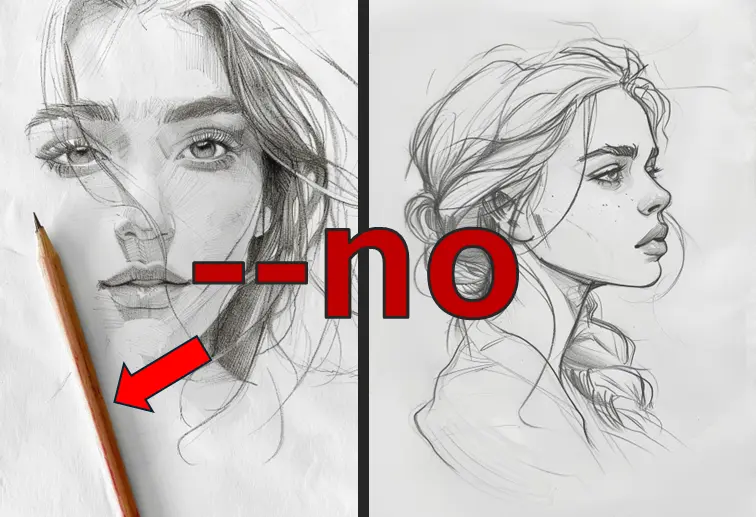
Imperfect silhouette outline pencil hand sketch of a pretty girl on white paper background with graphite stroke shading
This prompt generated images like this:

Notice the pencils and hands in all the images?
Well, I don’t want those!
This is the perfect scenario to use a Midjourney negative prompt.
Simply add --no pencil, pencils, hand, hands to the prompt and we get this:
Imperfect silhouette outline pencil hand sketch of a pretty girl on white paper background with graphite stroke shading --no pencil, pencils, hand, hands

The negative prompt did its job, no more pencils or hands!
A couple of things to know about --no:
-
It always goes at the end of your prompt, with two hyphens and a space before them.
-
Midjourney reads every word after
--noon its own. So--no modern clothingmeans “no modern” and “no clothing”, which can set off the moderation filter. In cases like that, describe the clothing you do want instead.
Negative Weights
Adding a double colon (::) to your text prompts indicates to the Midjourney AI that it should consider each part of the prompt separately. This is called a multi-prompt.
You can also assign weights to each part of your prompt to increase the presence of a specific feature or remove it entirely.
Heads up: multi-prompts and weights only work on V6.1 and older models (and Niji 6). V7 and V8 don’t support them, so add --v 6.1 to the end of your prompt to use this method.
Take the prompt Ice Cream for example. In the images below, one had a 90% weight on the word Ice, the other had a 90% weight on the word Cream.

Notice how one set of images is basically ice while the other is all cream?
Now, all we need to do is add a negative weight!

Success! Notice the negative weight removed the features completely?
Two rules for negative weights: put no space before the ::, and make sure all your weights add up to a positive number (still life painting:: fruit::-0.5 works, but still life painting:: fruit::-2 throws an error). Fun fact: --no is the same as giving something a weight of -0.5.
An Alternative to Negative Prompts: The Editor (Vary Region)
Midjourney’s Editor is a powerful generative fill/remove tool that enables you to add, remove, and modify objects and features in your image generation. When I wrote this, the inpainting part was called Vary Region on the website. Now it’s the Erase brush in the Editor, and Discord still calls it Vary Region.
Imagine you’ve created an image you’re really happy with, but there’s a feature you want to remove. Instead of generating the image again and using negative prompts, you can simply erase the object and regenerate just that area.
To get started, create images as you normally would in Midjourney with a text prompt. I’ll use the pencil sketch as an example again.
Back then, I clicked the image I wanted to remove an object from, then clicked Vary Region. These days you click the image, then Edit under Creation Actions.

Then highlight the area you want to modify. In my screenshots it’s the rectangle or lasso tool; in today’s Editor you paint over it with the Erase brush or use Smart Select. The Editor looks quite different from these 2024 screenshots, but the idea is the same.

Now type in your new prompt, this can be tricky to get your head around.
Don’t type something like remove pencil (at least not on the older models, more on that below).
Instead, type what you want to see instead of the pencil.
My Vary Region prompt text was: white paper background with graphite stroke shading
Notice I prompted what I wanted to see instead of the pencil.

Success!
The pencil is gone and I was able to keep my original image!
One update: on V8.1 and V8.2 the Editor runs on Midjourney’s new Edit model, which does understand plain instructions. So on the newest models, typing something like “remove the pencils” is worth a shot too.
5 Examples of Effective Negative Prompting
Here’s 5 more examples to show you how to effectively use negative prompts to create better images in Midjourney. Examples 4 and 5 use negative weights, so add --v 6.1 if you’re running them on a current model.
1. Excluding Specific Items
Original Prompt: A beautiful landscape with mountains, a river, and native animals grazing in the meadow

Undesired Element: Trees
Negative Prompt: A beautiful landscape with mountains, a river, and native animals grazing in the meadow --no tree, trees

Explanation: By adding --no tree, trees, we ensure that the generated image will not include any trees.
2. Removing Specific Colors
Original Prompt: A vibrant cityscape at night with colorful neon lights

Undesired Element: Pink lights
Negative Prompt: A vibrant cityscape at night with colorful neon lights --no pink

Explanation: The --no pink parameter will exclude any pink lights or shades, focusing on other colors in the cityscape.
3. Avoiding Certain Objects
Original Prompt: A cozy living room with a fireplace, a couch, and a coffee table and shelf

Undesired Element: Books
Negative Prompt: A cozy living room with a fireplace, a couch, and a coffee table and shelf --no books

Explanation: This prompt removes books from the image, keeping the rest of the living room elements intact.
4. Removing Specific Styles
Original Prompt: A futuristic car design with sleek lines and a shiny metallic finish

Undesired Element: Shiny metallic finish
Negative Prompt: [A futuristic car design with sleek lines]::9 and a [shiny metallic finish]::-1

Explanation: The negative weight of -1 on “shiny metallic finish” pushes the car design away from a metallic finish, showing a more matte appearance.
5. Negative Weights for Complex Prompts
Original Prompt: A delicious plate of sushi

Undesired Element: Salmon
Negative Prompt: [A delicious plate of sushi]::9 salmon::-1

Explanation: Assigning a negative weight ::-1 to “salmon” will reduce or completely remove it from the generated image.
Wrapping Up
Today I showed you 2 methods to use Midjourney negative prompts.
The --no parameter is a simple and effective way to quickly remove unwanted elements and specific objects from your images, and it works on every current model.
Negative prompt weights are another great way to remove unwanted objects from your images, as long as you run them on V6.1 or older.
Alternatively, if you have generated an image you really like but it has an unfortunate attribute you’d like to remove, take advantage of the Editor!
Negative prompts are sure to come in handy whether you’re designing landscapes, portraits, or business logos in Midjourney! Grab my Midjourney cheat sheet to keep the syntax handy.