What are all the Midjourney parameters?
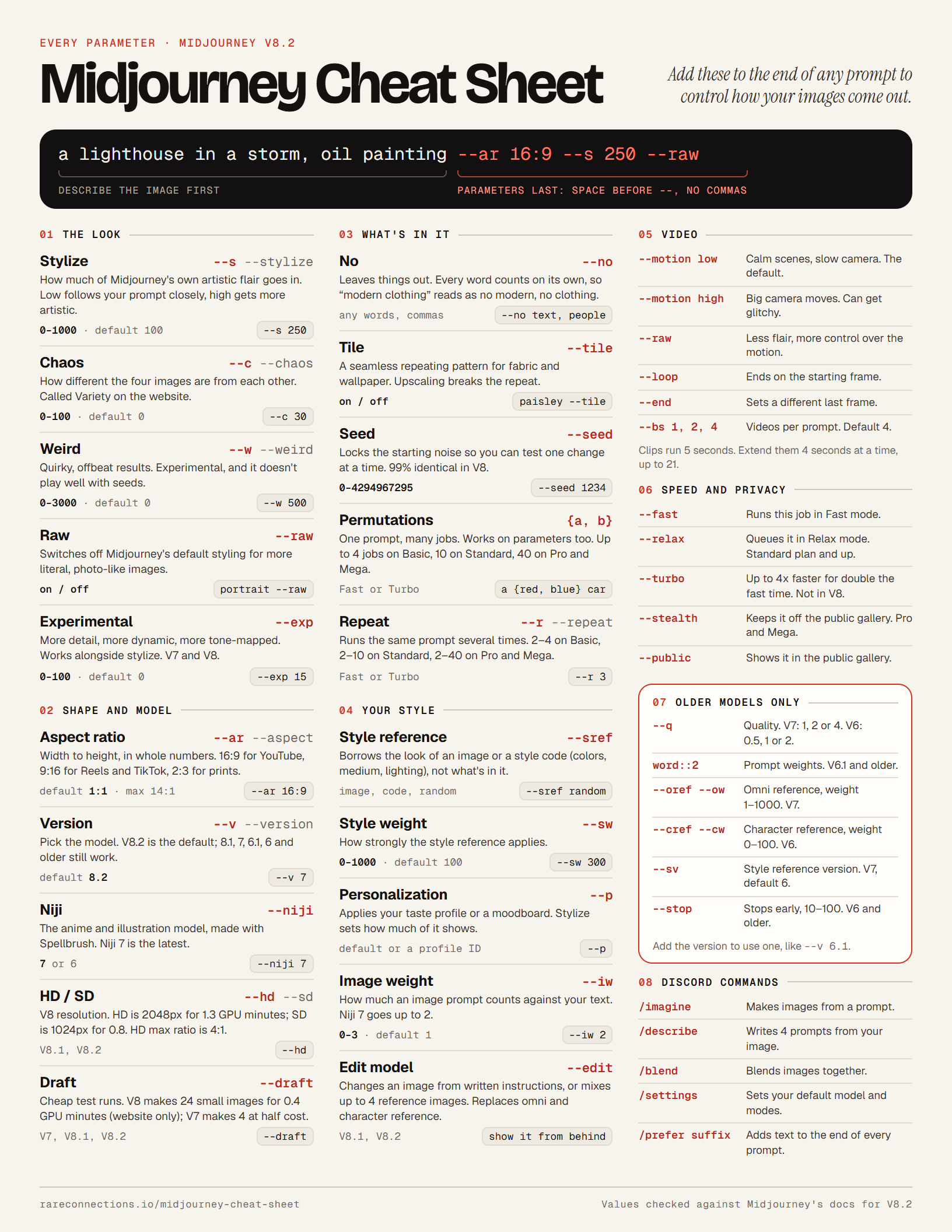
Midjourney parameters are short settings that start with two hyphens and go at the end of your prompt, like --ar 16:9 or --s 250. These are all the parameters that work in V8.2:
| Parameter | Syntax | Values | Example |
|---|
| Stylize | --s or --stylize | 0 to 1000, default 100 | --s 250 |
| Chaos | --c or --chaos | 0 to 100, default 0 | --c 30 |
| Weird | --w or --weird | 0 to 3000, default 0 | --w 500 |
| Raw | --raw | On or off | --raw |
| Experimental | --exp | 0 to 100, default 0 | --exp 15 |
| Aspect ratio | --ar or --aspect | Whole numbers, default 1:1, up to 14:1 | --ar 16:9 |
| Version | --v or --version | 8.2 (default), 8.1, 7, 6.1, 6, and older | --v 7 |
| Niji | --niji | 7 or 6 | --niji 7 |
| HD and SD | --hd or --sd | 2048px or 1024px | --hd |
| Draft | --draft | On or off | --draft |
| No | --no | Any words, separated by commas | --no text, people |
| Tile | --tile | On or off | --tile |
| Seed | --seed | 0 to 4294967295 | --seed 1234 |
| Permutations | {a, b} | Up to 4, 10, or 40 jobs, by plan | a {red, blue} car |
| Repeat | --r or --repeat | Up to 4, 10, or 40 runs, by plan | --r 3 |
| Style reference | --sref | Image, style code, or random | --sref random |
| Style weight | --sw | 0 to 1000, default 100 | --sw 300 |
| Personalization | --p | Your default profile, or a profile ID | --p |
| Image weight | --iw | 0 to 3, default 1 | --iw 2 |
| Edit model | --edit | Up to 4 reference images | --edit |
| Video motion | --motion | low (default) or high | --motion high |
| Video loop | --loop | On or off | --loop |
| Video end frame | --end | An image | --end |
| Video batch size | --bs | 1, 2, or 4, default 4 | --bs 1 |
| Video (Discord) | --video | On or off | --video |
| Speed | --fast, --relax, or --turbo | Turbo isn't in V8 | --relax |
| Privacy | --stealth or --public | Stealth needs Pro or Mega | --stealth |
Older parameters like --q, :: prompt weights, and --oref still work when you switch to an older model with --v.
How do you use parameters in Midjourney?
You add Midjourney parameters to the very end of your prompt, after you’ve described what you want to see. Midjourney’s parameter rules are simple:
- Put a space between your prompt and the two hyphens.
- Don’t add commas, periods, or other punctuation inside the parameters.
- Don’t write any prompt text after them.
a lighthouse in a storm, oil painting --ar 16:9 --s 250 --raw
On midjourney.com you can also set most of them as defaults in the settings panel next to the Imagine bar.
Midjourney parameters for the look of an image
Stylize (--s)
Stylize is one of the fundamental Midjourney parameters you should commit to memory. It sets how much of Midjourney’s own artistic flair goes into your image. Low values follow your prompt closely but look plainer. High values look very artistic but drift further from your prompt.
Use --s or --stylize with any value from 0 to 1000. The default is 100. If you use Personalization, stylize also sets how much of your profile shows.
A fresh green apple --s 600
Chaos (--c)
Chaos is a powerful way to get unexpected results from your Midjourney prompt. It sets how different the four images in each job are from each other, and on the website it’s called Variety. High values give unusual compositions, and low values give reliable, repeatable results.
Use --c or --chaos with any value from 0 to 100. The default is 0.
A happy puppy --c 50
Weird (--w)
Weird gives your images quirky, offbeat traits. It’s similar to chaos, but stranger. Midjourney calls it experimental, and it doesn’t play perfectly with seeds.
Use --w or --weird with any value from 0 to 3000. The default is 0.
A colorful coral reef --w 1500
Raw (--raw)
Raw switches off Midjourney’s default styling. Simple prompts come out more literal and photo-like, and detailed style prompts get followed more closely. Add --raw to the end of your prompt; it doesn’t take a value. My guide to raw mode in Midjourney goes deeper.
Portrait of a fisherman at dawn --raw
Experimental (--exp)
The --exp parameter is Midjourney’s experimental aesthetics setting. It makes images more detailed, more dynamic, and more “tone-mapped”, a bit like a second stylize slider, and you can use both together. It runs from 0 to 100, the default is 0, and it works on V7 and V8. Higher values push the effect harder but follow your prompt less closely, so start low.
A neon night market in the rain --exp 15
Midjourney parameters for size, model, and resolution
Aspect ratio (--ar)
Aspect ratio sets the shape of your image. Use --ar or --aspect with two whole numbers, width first. The default is 1:1, and V6, V7, and V8 go all the way to 14:1 (4:1 for V8 HD images).
Common aspect ratios are:
- 16:9 for YouTube
- 9:16 for Reels and TikTok
- 3:2 or 2:1 for blog images
- 1:1 for Instagram posts
- 2:3 for prints and Pinterest
A YouTube cover image --ar 16:9
Version (--v)
Midjourney lets you choose which model makes your image. V8.2 has been the default since July 24, 2026, and you can still switch back to V8.1, V7, V6.1, V6, and older legacy models with --v or --version. You can also pick a default version in the settings panel on the website.
A beautiful sunset --v 7
Niji (--niji)
Niji is a special Midjourney model made with Spellbrush for anime and Eastern illustration styles. Niji 7 is the latest, released on January 9, 2026. It’s more literal than Niji 6, with cleaner, flatter line work.
A samurai cat in a cherry blossom storm --niji 7
HD and SD (--hd, --sd)
V8.1 and V8.2 can make 2048px HD images without upscaling. Add --hd for HD, which costs 1.3 GPU minutes, or --sd for standard 1024px images at 0.8 GPU minutes. HD images max out at a 4:1 aspect ratio, and using Pan, Zoom Out, or Vary Region on an HD image brings it back down to SD.
A detailed fantasy city map --hd
Draft (--draft)
Draft mode is the cheap way to test ideas. In V8.1 and V8.2, one draft prompt makes a batch of 24 small 512px images for 0.4 GPU minutes, and you vary or remix the ones you like at full resolution. It’s only on midjourney.com, not Discord. In V7, a draft makes 4 images at half the usual GPU cost.
Add --draft to your prompt, or click the Draft Mode button next to the Imagine bar.
Logo ideas for a coffee cart --draft
Midjourney parameters for what’s in the image
No (--no)
Midjourney’s no parameter is the equivalent of a negative prompt in other models. It keeps certain items and styles out of your images. My Midjourney negative prompts guide goes deeper.
Add --no followed by any words, separated by commas.
A hand sketch of a beautiful woman --no pencil
Midjourney reads every word after --no on its own, so --no modern clothing means “no modern” and “no clothing”, which can trip the moderation filter. Describe what you do want instead.
Tile (--tile)
The tile parameter makes seamless repeating patterns for fabric, wallpaper, and backgrounds. It works on V8.1 and V8.2 as well, just not with the Edit model. Upscaling a tile often breaks the seamless repeat, so skip the upscale.
Patchwork design --tile
Seed (--seed)
A seed locks the random noise Midjourney starts from, so you can change one word at a time and see exactly what it does. Use any whole number from 0 to 4294967295. In V8, the same seed gives images that are about 99% identical, and seeds aren’t reliable in Turbo mode.
A red fox in the snow --seed 1234
Permutations ({ })
Permutation prompts let you put several options into a single text prompt. It’s a powerful way to save time and generate large collections of images fast, and they work with any parameter listed here. Be careful with your GPU minutes!
Your plan caps how many prompts one permutation can make: 4 on Basic, 10 on Standard, and 40 on Pro and Mega. They only run in Fast or Turbo mode, not Relax. Here are 10 ways to use permutation prompts.
{red, blue} apple --s {100, 600}
Repeat (--r)
Repeat runs the same prompt several times in one go. Use --r or --repeat. Basic plans allow 2 to 4 runs, Standard allows 2 to 10, and Pro and Mega allow 2 to 40. Like permutations, it only works in Fast and Turbo mode and uses Fast GPU time for every run.
A lighthouse in a storm --r 3
Midjourney parameters for your own style and images
Style reference (--sref, --sw)
A style reference copies the look of an image (its colors, medium, textures, and lighting) without copying what’s in it. Drag an image into the Style Reference section on the website, add an image link after --sref in Discord, or use a style code from the Style Explorer. --sref random picks a random style code for you.
--sw sets how strongly the style applies, from 0 to 1000, and the default is 100. On V7, --sv picks which style reference version to use (6 is the default).
A ballpoint pen sketch of a bunny --sref random --sw 300
Personalization (--p)
Personalization learns your taste from the images you pick on the Personalize page, then applies it to your prompts. Add --p to use your default profile, or --p and a profile ID to use a specific profile or moodboard. Stylize controls how much of it shows, and your Global V7 profile also works in V8.1 and V8.2.
A cozy reading nook --p
Image weight (--iw)
When you add an image to your prompt, --iw sets how much it counts against your text. It goes from 0 to 3 on V8.1 and V7 (0 to 2 on Niji 7), and the default is 1. Higher values stick closer to your image.
On the website, drag your image into the Image Prompt section, then add --iw to your text.
A watercolor fox --iw 2
Edit model (--edit)
The Edit model arrived with V8.1 and V8.2. It changes an existing image from written instructions, like “let’s see this from behind”, or builds a new image from up to four reference images. It replaces omni reference, character reference, and the Retexture tool. Attach your images to the prompt on midjourney.com, or use --edit. It doesn’t work with --tile, and adding --raw gives your instructions more control.
Midjourney video parameters
Midjourney turns any image into a 5-second video, and you can extend it 4 seconds at a time, up to 21 seconds. Video jobs only accept these parameters:
| Parameter | What it does |
|---|
--motion low | Calm scenes, slow camera, and subtle movement. The default. |
--motion high | Big camera moves and bigger character movement, but it can get glitchy. |
--raw | Less creative flair, so your prompt controls the motion more. |
--loop | Ends the video on its starting frame. |
--end | Sets a different image as the last frame. |
--bs | How many videos each prompt makes: 1, 2, or 4 (default 4). |
In Discord, add --video to your prompt to make videos. A batch of four SD (480p) videos costs 8 GPU minutes, and HD (720p) costs 26, so --bs 1 is handy for tests.
Midjourney speed and privacy parameters
These do the same job as the speed and privacy switches in your settings, but for one prompt at a time:
| Parameter | What it does |
|---|
--fast | Runs the job in Fast mode, using your Fast GPU time. |
--relax | Queues the job in Relax mode (Standard, Pro, and Mega plans). Waits run 0 to 30 minutes. |
--turbo | Up to 4 times faster than Fast mode, for double the GPU time. Not available in V8. |
--stealth | Keeps the image out of the public gallery (Pro and Mega plans). |
--public | Shows the image in the public gallery. |
Which Midjourney parameters don’t work in V8?
The Midjourney parameters that don’t work in V8.1 and V8.2 are quality (--q), multi-prompt weights (::), omni reference (--oref), character reference (--cref), and --stop, and Turbo mode is gone too. Add --v 7 or --v 6.1 to the end of your prompt when you need one of them. Here’s what works where, based on Midjourney’s version docs:
| Feature | V8.1 and V8.2 | V7 | V6 |
|---|
Quality --q | No | 1, 2, or 4 | 0.5, 1, or 2 |
Prompt weights :: | No | No | Yes |
Omni reference --oref | No (use the Edit model) | Yes | No |
Character reference --cref | No (use the Edit model) | No | Yes |
| Edit model | Yes | No | No |
HD images --hd | Yes | No | No |
Experimental --exp | Yes | Yes | No |
| Draft mode | Yes (website only) | Yes | No |
| Turbo mode | No | Yes | Yes |
Stop --stop | No | No | Yes |
| Max aspect ratio | 14:1 (4:1 in HD) | 14:1 | 14:1 |
Quality (--q)
Quality sets how much GPU time Midjourney spends on the first grid of images. V8.1 and V8.2 don’t support it at all, so it only works when you switch to an older model. On V7 you can use --q 1, 2, or 4 (1 is the default), and on V6 it’s 0.5, 1, or 2. It only changes the first four images, not variations or upscales. On V8, use --hd when you want more detail and --draft when you want to save GPU time.
An underwater scene --v 7 --q 2
Prompt weights (::)
Prompt weights allow you to emphasize certain keywords or phrases within your advanced prompts. They only work on V6.1 and older models (and Niji 6), according to Midjourney’s multi-prompt docs, so add --v 6.1 when you want to use weights.
The weight applies to everything before the double colon (back to the previous one), so you don’t need brackets around phrases. Leave no space before the ::. Negative weights remove things, as long as the total of all weights stays positive, and --no works the same as a weight of -0.5.
ice::8 cream::2 --v 6.1
Omni reference (--oref, --ow)
Omni reference puts a person, character, or object from your image into a new V7 image. --ow sets how closely it copies, from 1 to 1000, and the default is 100. It doesn’t work in V8, where the Edit model does the same job with up to four images.
Character reference (--cref, --cw)
Character reference keeps the same character across V6 images. --cw sets how much carries over, from 0 (just the face) to 100 (face, hair, and clothes), and 100 is the default. V7 replaced it with omni reference, and V8 with the Edit model.
Stop (--stop)
The --stop parameter ends a job early, anywhere from 10 to 100 percent of the way through, for softer, less detailed images. It only works on V6 and older.
What are the Midjourney Discord commands?
Midjourney’s Discord commands start with a slash and go in the Discord message box, not in your prompt. Parameters are different: they start with two hyphens and go at the end of a prompt. These are the Discord commands you’ll use most:
| Command | What it does |
|---|
/imagine | Makes images from your prompt. |
/describe | Writes four example prompts from an image you upload. |
/blend | Blends images together. |
/settings | Shows and changes your default settings. |
/info | Shows your account and any queued or running jobs. |
/fast, /relax, /turbo | Switches your GPU speed. |
/stealth, /public | Switches between private and public images (Pro and Mega). |
/shorten | Suggests how to make a long prompt shorter. |
/prefer suffix | Adds the same text to the end of every prompt. |
/prefer option set | Saves a custom option you can reuse. |
/prefer remix | Turns Remix mode on or off. |
/subscribe | Gives you a link to your account page. |
On the website, Describe works a little differently. Here’s how to use Describe in the Midjourney web app.
Final Thoughts
I hope my Midjourney cheat sheet helps you create better art!
Don’t forget to download the PDF so you’ve always got it handy when you’re using Midjourney. 🙂
Happy generating. 😎